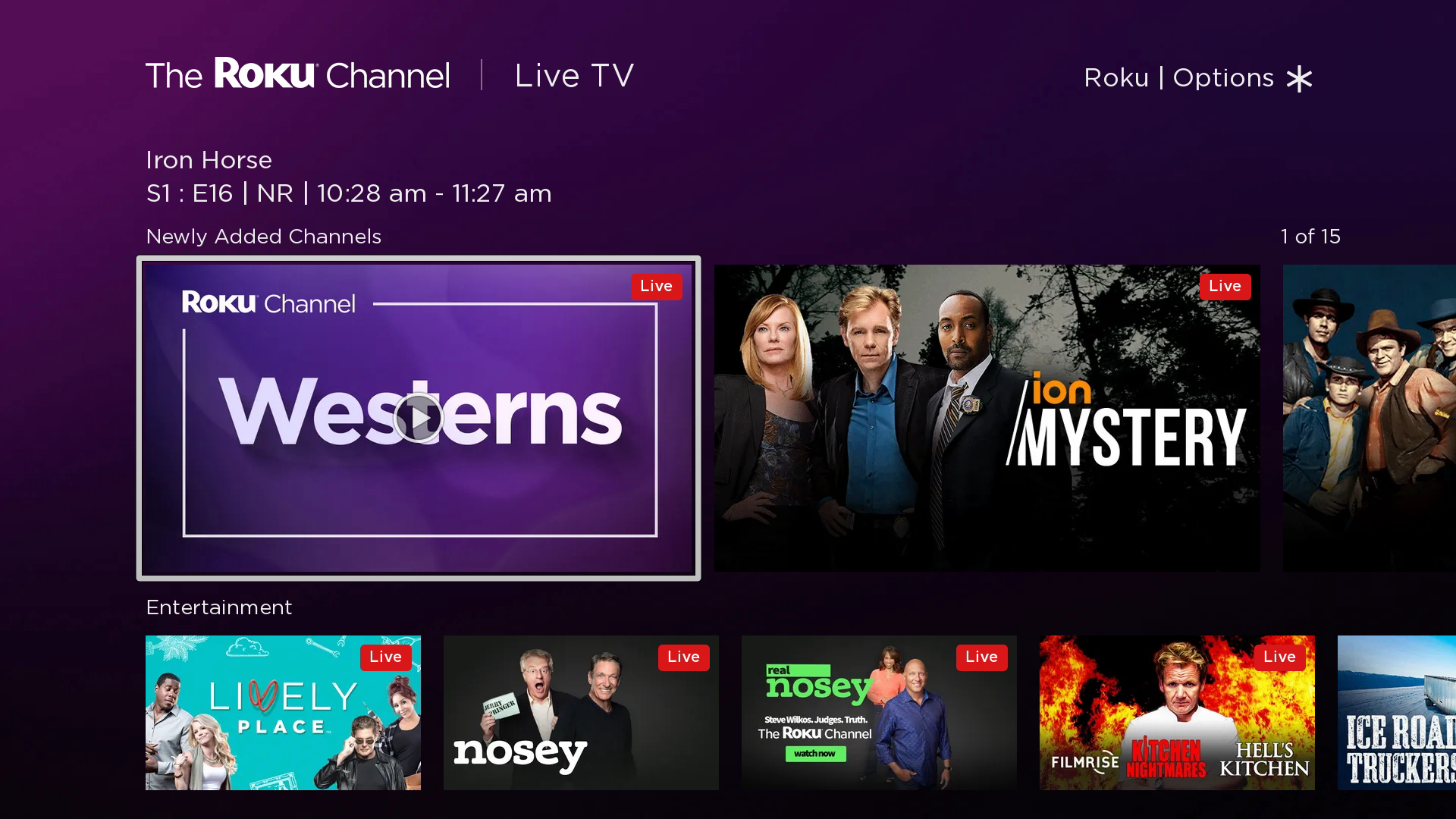
In today’s tech-savvy world, the ability to screen mirror to a Roku device can dramatically enhance your TV experience. Whether you want to stream your favorite shows, display vacation photos, or share a presentation, screen mirroring offers endless possibilities. This guide will walk you through everything you need to know to make the most of screen mirroring with your Roku device.
What is Screen Mirroring?
Screen mirroring is a technology that allows you to replicate the screen of your smartphone, tablet, or computer onto your TV. This means whatever is displayed on your smaller device screen will appear on your Roku-connected TV in real-time.
This feature is particularly useful for streaming videos, playing games, or even browsing the internet on a larger screen. For tech enthusiasts and smart TV Master, mastering screen mirroring can significantly enhance their overall viewing experience.
Why Choose Roku for Screen Mirroring?
Roku is one of the leading brands in the streaming device market, renowned for its user-friendly interface and wide range of content options. The key benefits of using Roku for screen mirroring include:
- Wide Compatibility: Roku supports screen mirroring for both Android and Windows devices.
- Ease of Use: The process to set up screen mirroring on Roku is straightforward.
- High-Quality Streaming: Roku provides high-resolution streaming, ensuring a clear and crisp mirrored display.
Devices Compatible with Roku Screen Mirroring
Before you start, it’s essential to know which devices are compatible with Roku for screen mirroring. Generally, most modern Android devices and Windows PCs support screen mirroring. However, Apple devices may require additional steps or apps, as native support is limited.
Setting Up Screen Mirroring on Roku
Enable Screen Mirroring on Your Roku Device
- Access the Settings Menu:
- Power on your Roku device and press the Home button on your Roku remote.
- Navigate to the “Settings” menu.
- Select Screen Mirroring:
- In the settings menu, find and select “System.”
- Choose “Screen mirroring” from the options.
- Choose Your Preferences:
- Select “Screen mirroring mode” and choose between “Prompt” or “Always allow” based on your security preferences.
Prepare Your Phone or Tablet
- Open the Settings Menu:
- On your Android device, open the “Settings” app.
- Navigate to Display:
- Find and tap on “Display,” then look for “Cast” or “Screen Mirroring.”
- Select Your Roku Device:
- Your Roku device should appear in the list of available devices. Tap it to start mirroring.
Screen Mirroring from Windows to Roku
Windows PC Setup
- Open Action Center:
- Click on the Action Center icon in the taskbar or press `Windows + A` on your keyboard.
- Select Connect:
- Click “Connect” and your PC will start searching for nearby devices.
- Choose Your Roku Device:
- Once your Roku appears in the device list, click on it to start mirroring.
Adjusting Screen Resolution
While mirroring, you might need to adjust the screen resolution for an optimal viewing experience. You can do this by going to “Display Settings” on your Windows PC and selecting the appropriate resolution.
Troubleshooting Common Issues
Connectivity Problems
If you encounter connectivity issues, ensure both your Roku device and the device you’re mirroring from are connected to the same Wi-Fi network. Restarting both devices can also resolve most connectivity problems.
Performance Lag
To minimize performance lag, ensure your Wi-Fi signal is strong. Close unnecessary applications on your device to free up resources. Keeping your Roku device’s firmware updated can also improve performance.
Audio Sync Issues
If the audio is out of sync, check your device’s audio settings. Ensure that both your Roku device and the mirroring device have the same audio output settings. Restarting the mirroring session can also help.
Enhancing Your Viewing Experience
Use a High-Speed Internet Connection
For the best screen mirroring experience, use a high-speed internet connection. This ensures smooth video playback and reduces buffering times.
Optimize Device Settings
Adjust the display settings on your mirroring device to match your TV’s capabilities. This includes setting the correct aspect ratio and resolution.
Explore Third-Party Apps
Several third-party apps can enhance your screen mirroring experience. Apps like “AllCast” and “Miracast” offer additional features and better compatibility with different devices.
Security Considerations
Control Access
With screen mirroring, anyone within your Wi-Fi range could potentially mirror their screen to your Roku. To prevent unauthorized access, always set your screen mirroring mode to “Prompt.”
Update Firmware Regularly
Regularly updating your Roku device firmware ensures it has the latest security patches and features. This can prevent vulnerabilities that could be exploited by unauthorized users.
Use Secure Networks
Always use secure and private Wi-Fi networks for screen mirroring. Avoid using public Wi-Fi networks, as they can be easily compromised.
Real-Life Applications of Screen Mirroring
Business Presentations
Screen mirroring is a powerful tool for business presentations. It allows you to display your presentation on a large screen without needing cables or adapters, enhancing the overall professional image.
Online Learning
For students and educators, screen mirroring can enhance online learning experiences. Displaying educational content on a larger screen makes it easier to follow along and engage with the material.
Family Entertainment
Screen mirroring is perfect for family entertainment. Share vacation photos, watch movies, or play games together on the big screen, creating memorable moments with loved ones.
Future Trends in Screen Mirroring
Integration with Smart Home Devices
The future of screen mirroring lies in its integration with smart home devices. Imagine seamlessly sharing content between your phone, TV, and smart speakers, creating a fully connected home entertainment system.
Enhanced AI Capabilities
AI will play a significant role in the future of screen mirroring. From voice commands to personalized content recommendations, AI will make screen mirroring more intuitive and user-friendly.
Broader Device Compatibility
Manufacturers are working towards making screen mirroring universally compatible across all device types. This means easier and more reliable connections, no matter what devices you’re using.
Conclusion
Screen mirroring to a Roku device offers a world of possibilities for tech enthusiasts and smart TV users. From enhancing business presentations to creating memorable family entertainment experiences, the benefits are endless. By following this comprehensive guide, you can master the art of screen mirroring and elevate your viewing experience to new heights.
Ready to get started? Dust off your Roku remote, configure your settings, and start enjoying the seamless integration of your devices. For more tips and expert advice, be sure to explore further resources and join the community of savvy tech users who are making the most of screen mirroring technology.